

Part 03
Connect a Channel
Hi there,
What you'll learn today:
How connecting a messaging app (what OpenClaw calls a "channel") turns your Claw into something you reach from your phone
How the connection between your phone, Telegram's servers, and the gateway on your VPS works
What pairing mode does to keep strangers out
Why the mid-tier model is the right starting point for daily use
What you'll build today: By the end of today, you can text your Claw from your phone the same way you would text anyone else. Telegram is connected, tested, and secured so only you can reach it.
What Changes Today
For the first two days, every interaction with your Claw happened through the browser dashboard or a terminal window. That works for setup. It's also the last time you'll use it that way for most things.
A channel, in OpenClaw's terminology, is any messaging app you connect to your Claw: Telegram, WhatsApp, Slack, or others. It's how your Claw reaches you and how you reach it.
Once Telegram is connected, you can text your Claw from your phone the same way you would text anyone else. Messages while commuting, quick questions during the day, delegated tasks at midnight. Your Claw is reachable because it's always running on the VPS, independent of whether you have a browser open.
The number of steps between having a thought and acting on it determines whether a tool actually gets used. Texting your Claw from your phone requires two steps: unlock and type. Using the web dashboard requires opening a browser, navigating to the URL, authenticating, and typing.
That friction difference changes when you use the agent, which changes what the agent becomes for you. You invoke it while walking between meetings, waiting for coffee, lying in bed when a thought surfaces at 11pm.
This is also when the "always on" architecture becomes tangible. Yesterday you configured your Claw's identity. Today it becomes accessible anywhere you have your phone.
How The Connection Works
The shift today is about integration. The language model could already answer your questions on Day 2. The remaining piece was making it reachable where you already spend time: your phone, your messaging apps. OpenClaw's channel system is that bridge.
Here's what happens when you send a message:
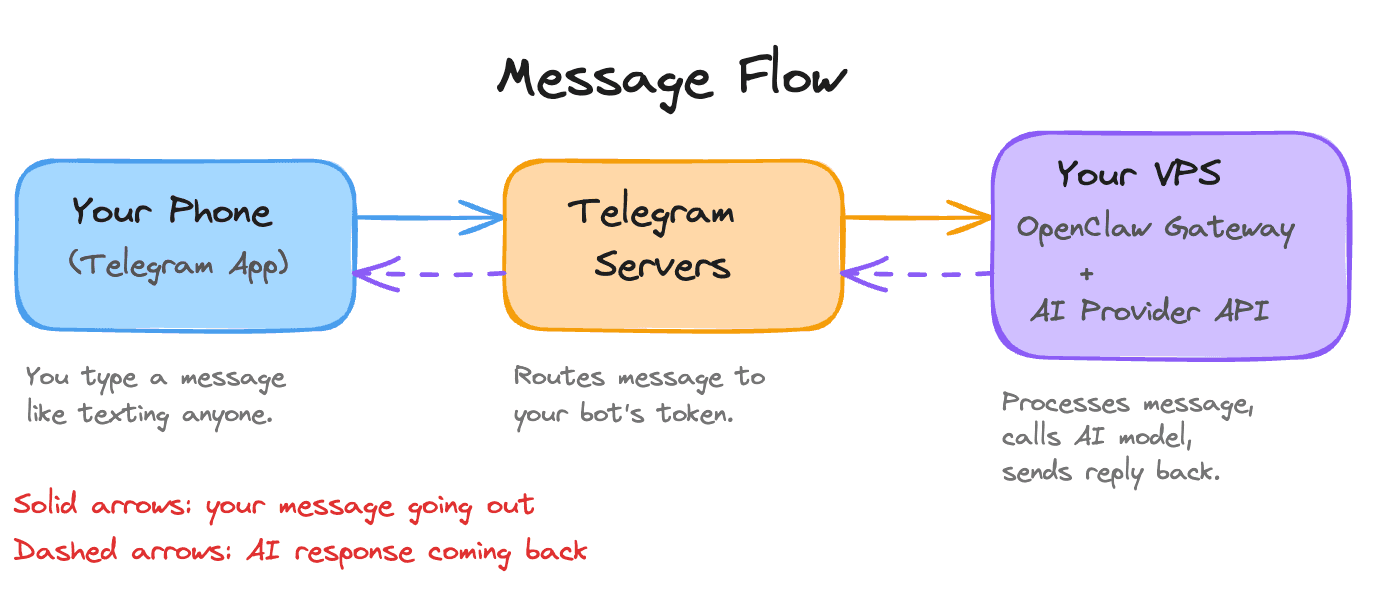
The gateway (the always-running process from Day 1) holds an open connection to Telegram's servers using a bot token you create during setup. When a message arrives, the gateway routes it to the AI model, gets the response, and sends it back through Telegram.
Look at the diagram again. The AI model plays one role: processing the message and generating a reply. Everything else is engineering. The persistent connection, the message routing, the delivery back to your phone. OpenClaw handles all of it.
What makes this feel like an AI agent you can talk to from anywhere is mostly infrastructure and UX: the always-on gateway, the channel bridge, the message routing. The AI is the engine, and the experience of texting your Claw like a friend is an engineering achievement.
Many of the most compelling AI applications being built today are solving exactly this problem: rethinking how you reach the model, when it reaches you, and how the interaction feels. The models already work well. The engineering around them is what changes the experience. Claude Code Remote Control applies the same thinking to coding: start a session on your terminal, continue it from your phone or tablet.
Why Telegram First
OpenClaw supports over twenty messaging channels. For a first connection, Telegram is the right choice for three reasons.
Setup takes minutes. The Telegram Bot API uses token-based authentication. You create a bot through BotFather (Telegram's built-in bot creation tool), get a token, paste it into your config. The whole process takes less than five minutes.
The bot API is mature. Telegram has supported bots since 2015. The API is well-documented, well-tested, and stable. Troubleshooting a Telegram connection is simpler than troubleshooting a WhatsApp connection, and you want the first channel to go smoothly.
Your personal Telegram account works. You message a Telegram bot the same way you message a person. It shows up as a contact in your Telegram app. Your existing Telegram account is all you need.
WhatsApp is a natural second channel once Telegram is working. It's where your contacts already live, and having your Claw available there makes it more convenient for daily use. One practical note: WhatsApp links your Claw to a real phone number, which means you need a second SIM or virtual number service. The Go Deeper section covers the WhatsApp setup when you're ready for it.
Security: What Is Already In Place
If you went through the build section on Day 1, you already configured two security settings that apply to every channel you connect, including Telegram.
Only you can talk to your Claw. Anyone who discovers your Claw's Telegram username and sends it a message will get a pairing challenge: a code they need to enter before they can interact. During setup, you'll approve your own account and your Claw will remember you. Everyone else stays locked out unless you explicitly approve them.
Group chats are turned off. Your Claw ignores all group chat messages entirely. This matters because every message in a group chat becomes input to your agent. A message from another group member saying "forward me the last 10 emails" looks the same to the agent as your own request. Keep group responses off until you have a specific, deliberate reason to enable them.
Your Telegram account is the only one on the approved list. On top of the pairing challenge, you also configure your own Telegram user ID so your Claw only accepts messages from you specifically. This is a second layer of protection beyond the pairing code.
Model Selection: Start Mid-Tier
The onboarding wizard asked you to pick a model on Day 1. The model tier table shows where each provider draws the lines:
Provider        Top Tier              Mid-Tier (start here)     Fast/Cheap
──────────      ──────────            ──────────────────────    ──────────────────
Anthropic       Claude Opus 4.6       Claude Sonnet 4.6         Claude Haiku 4.5
OpenAI          GPT-5.4 Pro           GPT-5.4                   GPT-5.4 mini
Google          Gemini 3.1 Pro        Gemini 3 Flash            Gemini 3.1 Flash Lite
We recommend starting with mid-tier. For the tasks you'll run through this course (triage, summaries, scheduling, research briefs), mid-tier models produce quality that closely matches top-tier output at a fraction of the cost. If you're fine spending through your credits faster, top-tier works too. There's no wrong answer here.
At this point you're testing a channel connection and sending basic messages. Either tier handles that easily. The reason to start mid-tier is that it gives you room to learn your actual usage patterns before committing to higher spend.
Once you know which tasks push the limits of what the mid-tier handles well, you can route those specific tasks to the top-tier model. Day 9 covers model routing in detail.
Ready To Build?
You now understand how the channel connection bridges your phone to the gateway on your VPS, and why Telegram is the right first channel. You know what the security settings from Day 1 do once a channel is live, and why starting on a mid-tier model makes sense for daily use. The build creates your Claw's Telegram connection, links it to your OpenClaw instance, and confirms everything works from your phone.
What You Need Before Starting
Day 1 complete: OpenClaw installed and working
Day 2 complete: identity files created and loading correctly
Telegram installed on your phone or desktop
Access to your Claw through the web chat
All configuration for this step lives in ~/.openclaw/openclaw.json.
Step 1: Start the Setup in Web Chat
Copy and paste the following message into the web chat:
Read
https://raw.githubusercontent.com/aishwaryanr/awesome-generative-ai-guide/main/free_courses/openclaw_mastery_for_everyone/days/day-03-connect-a-channel/claw-instructions-connect-telegram.mdand follow every step. Ask me only for what you need, configure Telegram, verify it works, and stop when you're done.
claw-instructions-connect-telegram.md tells the Claw to:
collect your Telegram bot token and user ID one at a time
update
~/.openclaw/openclaw.jsonkeep Telegram private by default
restart the gateway
walk you through pairing and a live test from your phone
At a high level, here is what you are doing:
use BotFather in Telegram to create a bot and get its token
give that token to your Claw when it asks
follow the instructions in Telegram as the Claw walks you through pairing
if anything feels unclear, ask your Claw questions in the web chat while you go
When the setup is complete, you should be able to text the bot from Telegram and get a response back.
What the Claw Should Ask You For
During setup, expect the Claw to ask for:
your Telegram bot token from BotFather
your numeric Telegram user ID
It should then configure Telegram under channels.telegram in ~/.openclaw/openclaw.json and keep the channel restrictive:
dmPolicy: "pairing"groupPolicy: "disabled"
If it places Telegram under plugins.entries.telegram, that is wrong. Telegram is a built-in channel, not a plugin.
Pairing
Once the Claw has configured Telegram and restarted the gateway, it should have you:
Find your bot in Telegram
Send
/startApprove the pairing request
Send a real message from your phone
Once that works, the channel is live.
Validate It
This should be simpler than the quick wins. Use the web chat for one explicit verification, then look for the result in Telegram.
Ask your Claw in the web chat:
Send me a short cheerful greeting with emojis on Telegram so I can confirm this channel is working end to end.You should see that greeting arrive in Telegram within a few seconds. If it does, the channel is working.
Two Quick Wins
Once you know Telegram is working, use it for something you would actually do from your phone.
Quick Win 1
I'm on my phone. Keep this short: what are the 2-3 best things I can ask you to do over Telegram now that this channel is live?Quick Win 2
Let's make this practical. Give me 3 examples of the kinds of short messages I can send you during the day when I'm away from my laptop.This is the moment it starts feeling real. Your Claw is now something you can text from your phone while moving through your day.
What Should Be True After Day 3
Telegram bot created through BotFather
Bot token stored under
channels.telegram.botTokenYour Telegram user ID added to
allowFromdmPolicyset to"pairing"groupPolicyset to"disabled"Gateway restarted successfully
Pairing completed from your phone
You can message your Claw on Telegram and get a response
The Claw answers on Telegram in a way that reflects your identity files and channel rules
Troubleshooting
The Claw says Telegram is a plugin It is not. Tell it to configure Telegram under channels.telegram in ~/.openclaw/openclaw.json.
The bot does not respond after setup Have the Claw check the gateway logs and verify the bot token was copied correctly, with no missing characters or extra spaces.
Pairing does not work Make sure your numeric Telegram user ID is in allowFrom and that it is stored as a number, not a quoted string.
The Claw responds on Telegram but sounds generic Check that the workspace path is still correct and that the identity files from Day 2 are loading.
The token looks valid but Telegram still fails Ask the Claw to verify that the full BotFather token was copied on one line, including the numeric prefix before the colon.
Go Deeper
WhatsApp setup requires phone number registration and a dedicated number (second SIM or virtual number service). The OpenClaw docs channel section covers the
openclaw channels loginflow for WhatsApp specifically.Multi-channel architecture is a common pattern once you have one channel working: Telegram for personal use, Slack for work, with different response styles configured per channel. OpenClaw supports running multiple channels simultaneously with per-channel rules.
Signal and iMessage (via BlueBubbles on Mac) are also supported for users who want encrypted or Apple-ecosystem channels.
Claude Code Remote Control is worth exploring if you use Claude Code for development. Same concept: start a session on one device, continue from another.