

Part 08
Let It Write
Hi there,
What you'll learn today:
How your Claw moves from internal workspace writes to external writes that affect other people
What an approval gate is and why every external write needs one
Why sending email is the natural first external write (builds on Day 6's read-only connection)
Why composing new messages is safer than replying or forwarding
What you'll build today: By the end of today, your Claw can compose and send emails on your behalf. Every outbound message pauses for your review before it goes out. You will also have a follow-up email workflow that handles a common pattern in one step.
Your Claw Starts Doing Things in the World
Today your Claw learns to send email on your behalf. You will be able to message it on Telegram and say "send a follow-up to Alex about the project update" and have the email composed, shown to you for review, and sent after you confirm. Instead of switching to your email client, finding the right contact, writing the message yourself, and hitting send, you describe what you want and your Claw handles the rest.
This is one of the moments where your Claw starts to feel like a true extension of how you work. Once this is working, you will wonder how you ever wrote routine emails manually.
Your Claw has been building toward this. The identity files from Day 2 shape how it communicates. The heartbeat from Day 4 gives it a schedule. The skills from Day 5 give it structure. The email connection from Day 6 gives it context about your conversations. The research capability from Day 7 lets it pull in facts and details. With all of that in place, your Claw understands enough about you and your work to write messages on your behalf.
But as with email reading on Day 6, new capability comes with new risk. Since Day 4, your Claw has been writing to its own workspace: journal entries in the evening, updates to MEMORY.md as it learns. Those are internal writes. They live in your workspace directory, only you see them, and undoing one is as simple as editing or deleting a file.
External writes are different. An email, once sent, stays sent. It lands in someone else's inbox. It becomes part of a conversation. It represents you. These actions cross the boundary from your private workspace into shared spaces where other people are affected.
So we will set this up the same way we approached email reading: with guardrails that keep you in control. Every outbound email your Claw composes will pause and show you exactly what it plans to send. You review it, confirm it, and only then does it go out. Internal writes like your evening reflection keep running automatically on the heartbeat schedule. External writes always wait for your go-ahead.
The Approval Gate
Here is what that confirmation step looks like in practice:
You: "Send Alex a follow-up about the Q2 roadmap discussion."

Claw: I will send this email:
     To: Alex Chen (alex@company.com)
     Subject: Follow-up: Q2 Roadmap Discussion
     Body: Hey Alex, wanted to follow up on our Q2 roadmap
     conversation from yesterday. I'll have the updated
     timeline ready by Thursday. Let me know if you need
     anything before then.

     Send this email? [Yes / Edit / Cancel]
The gate exists because your Claw's interpretation of your request might differ from what you had in mind. Maybe you meant a different Alex. Maybe you wanted to include more detail. Maybe the tone is too casual for this particular recipient. The confirmation step takes a few seconds. Undoing an email after it has landed in someone else's inbox is not possible.
Once you have run a particular workflow ten or twenty times and it consistently does exactly what you expect, you can configure that specific action type to skip confirmation. The principle: gates default on, you remove them for workflows you have proven.
How the Connection Works
On Day 6, you installed the imap-smtp-email skill and set up IMAP credentials so your Claw could read your inbox. Today you extend that connection in the opposite direction with SMTP, the protocol for sending email.
IMAP pulls messages in. SMTP pushes messages out. They are two sides of the same email system, and they use the same credentials. If you set up a Gmail App Password on Day 6, that same password works for SMTP. If you use Outlook, the same account credentials work for both directions.
Here is how the pieces connect:
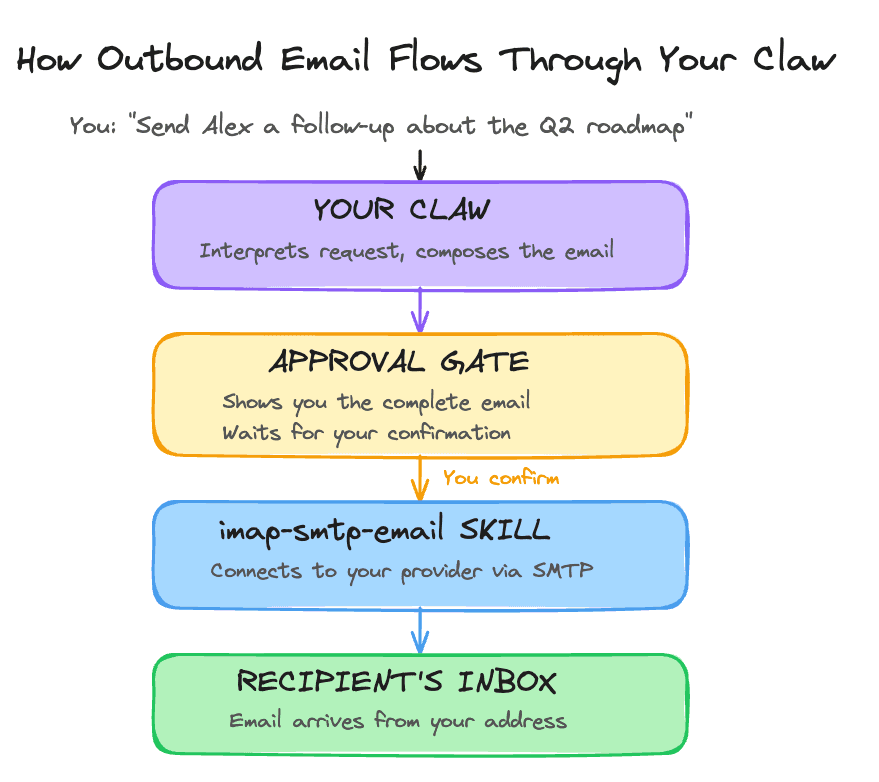
The approval gate sits between your Claw's composition and the actual send. Nothing leaves your outbox without your confirmation.
Start With Composing
When you first give your Claw the ability to send email, the safest starting point is composing new messages.
Composing a new email is purely additive. You are starting a fresh conversation with a specific person about a specific topic. If the email is wrong, the worst case is an awkward message you can follow up on.
Replying to existing threads is riskier. You are adding to a conversation that other people are already part of. A misunderstood context or wrong tone can derail an ongoing discussion.
Forwarding is the riskiest. You are sharing content that may not have been meant for the recipient. A forwarded message carries the original sender's words into a context they did not choose.
Today's build focuses on composing new messages only. Replying and forwarding come later, once the compose workflow is proven and you trust how your Claw handles tone and context.
Ready to Build?
You now understand the difference between internal writes (workspace files, automatic, easy to undo) and external writes (email, need confirmation, affect other people). You know how SMTP extends the IMAP connection you set up on Day 6, and why approval gates are the safety mechanism that makes outbound email practical. The build adds SMTP credentials alongside your existing IMAP setup, installs the send-capable skill, configures approval gates, and tests a complete compose-and-send workflow end-to-end.
What You Need Before Starting
Day 1 complete: OpenClaw installed and secured
Day 2 complete: identity files created and loading correctly
Day 3 complete: Telegram connected and working
Day 4 complete: a proactive workflow already exists
Day 5 complete: skills are working
Day 6 complete: Gmail inbox reading is working through
imap-smtp-emailDay 7 complete: web search is working
Access to your Claw through the OpenClaw web chat
Access to the same personal Gmail account you used on Day 6
How To Run Day 8
Work through the steps in this order:
inspect the send side of
imap-smtp-emailin chat
This order keeps the setup legible. You inspect the existing shared skill first, then your Claw turns on SMTP, then you add one reusable workflow on top, then you verify both the approval path and the cancel path.
Step 1: Inspect the Send Side of imap-smtp-email
Copy and paste this into the OpenClaw web chat:
Inspect
imap-smtp-emailfrom ClawHub again, this time for outbound email. Explain in plain English what SMTP settings it needs, how the approval step should work, what could be risky, and how we can keep Day 8 on compose-only email. Do not change anything yet.
You are checking two things here: whether the skill is ready for the send workflow, and whether the Day 8 boundary is still clear. Today is compose-only with explicit approval before every send. Reply and forward stay for later.
Step 2: Configure Outbound Email
After you are happy with the inspection, copy and paste this into the web chat:
Read
https://raw.githubusercontent.com/aishwaryanr/awesome-generative-ai-guide/main/free_courses/openclaw_mastery_for_everyone/days/day-08-let-it-write/claw-instructions-configure-outbound-email.mdand follow every step. Reuse my Day 6 Gmail setup, add the SMTP side for Day 8, add the outbound email rules, tell me exactly what changed, and stop when the setup report is complete.
That instruction file tells the Claw to:
confirm
imap-smtp-emailis installed and readyreuse your Day 6 Gmail address and App Password if it still needs them
add the Gmail SMTP settings to
~/.config/imap-smtp-email/.envkeep the config file owner-only
add
Outbound Email ProtocolstoAGENTS.mdkeep Day 8 on compose-only email with explicit approval before every send
The Day 6 App Password is the same credential you use here. Gmail App Passwords work for both IMAP and SMTP.
Step 3: Create follow-up-email
After outbound email is configured, copy and paste this into the web chat:
Read
https://raw.githubusercontent.com/aishwaryanr/awesome-generative-ai-guide/main/free_courses/openclaw_mastery_for_everyone/days/day-08-let-it-write/claw-instructions-create-follow-up-email.mdand follow every step. Createfollow-up-emailfor this workspace, tell me how to trigger it, and stop when you're done.
That instruction file tells the Claw to create one custom workspace skill that:
triggers on requests like
send a follow-up to ... about ...finds or asks for the recipient address
writes a short follow-up email in your Claw's voice
formats the body as clean plain text with real paragraph breaks
shows the full draft for approval before sending
stays inside the Day 8 compose-only boundary
After this step, type /new in OpenClaw before you test the new skill.
Step 4: Finalize and Verify
Copy and paste this into the web chat:
Read
https://raw.githubusercontent.com/aishwaryanr/awesome-generative-ai-guide/main/free_courses/openclaw_mastery_for_everyone/days/day-08-let-it-write/claw-instructions-finalize-outbound-email.mdand follow every step. Verify the Day 8 outbound email setup, give me the exact test messages to use, and report PASS or FAIL.
That instruction file tells it to:
confirm the Gmail SMTP setup exists
confirm
imap-smtp-emailis installed and readyconfirm
Outbound Email Protocolsandfollow-up-emailare in placegive you one exact approve test and one exact cancel test
remind you to test from a fresh session after
/new
Validate It
Type /new in OpenClaw first.
Then ask your Claw:
Send me an email with subject "OpenClaw Day 8 Test" and body "This is a test of outbound email from my Claw. Day 8 is working."Your Claw should show you the full draft, including To, Subject, and Body, and wait for approval before sending. Approve it, then check your inbox and Sent folder.
Then run the cancel test your Claw gives you in the finalize step. The draft should stop at the approval gate and never be sent.
Quick Win
From Telegram, send:
Send a follow-up to myself about the OpenClaw Day 8 setup. Keep it short and friendly.This is the Day 8 shift: your Claw is no longer just reading and summarizing. It can draft a real message for someone else, pause for review, and send it only after you approve it.
What Should Be True After Day 8
imap-smtp-emailwas inspected for the send workflow before any changesGmail SMTP settings were added to
~/.config/imap-smtp-email/.envthe config file permissions are still owner-only
imap-smtp-emailskill installed andready: trueOutbound email rules added to AGENTS.md
Test email sent to yourself and received
Approval gate cancellation verified (no email sent on cancel)
follow-up-emailworkspace skill createdYou started a fresh OpenClaw session with
/newbefore testing the new skillfollow-up-emailwas tested successfully
Troubleshooting
The Claw starts replying or forwarding instead of composing a new email Tell it that Day 8 is compose-only. Reply and forward are out of scope for this lesson.
SMTP authentication fails Use the same Gmail App Password from Day 6. If Google rejects it, generate a new App Password and have your Claw update both the IMAP and SMTP values in ~/.config/imap-smtp-email/.env.
The Claw says the Gmail send settings are missing Ask it to inspect ~/.config/imap-smtp-email/.env and confirm that SMTP_HOST, SMTP_PORT, SMTP_USER, SMTP_PASS, and SMTP_FROM are present.
The draft sends without showing you the full email first Ask the Claw to inspect AGENTS.md and confirm that Outbound Email Protocols requires showing the full draft and waiting for approval before every send.
The email body shows literal \\n, quote marks, or other odd characters Ask the Claw to update follow-up-email so the body is rendered as normal plain text before approval and before sending. The visible draft should read like a normal email, not a serialized string.
The test email does not arrive Check spam first. If it is not there, ask the Claw to verify that SMTP_FROM matches your Gmail address and that imap-smtp-email still reports ready: true.
The new skill does not seem active Type /new in OpenClaw, then test follow-up-email again.
Tomorrow you give your Claw a team.
Go Deeper
Once compose is working reliably, the natural next step is reply capability. The pattern: add a rule in AGENTS.md that allows replies only to threads you explicitly started or where you are already a participant. This keeps your Claw from jumping into conversations it was only CC'd on.
Google Calendar integration via the
gogskill and OAuth is worth adding after email sending is stable. It follows the same creation-first approach: start with creating events, then add attendee management, then modification and deletion. Thegogskill readme covers the full setup.Auto-send rules for specific message types are the next level of trust. For example, a rule that sends weekly status updates without confirmation after you have manually approved the same format ten times. The principle stays the same: prove the workflow first, then remove the gate.